

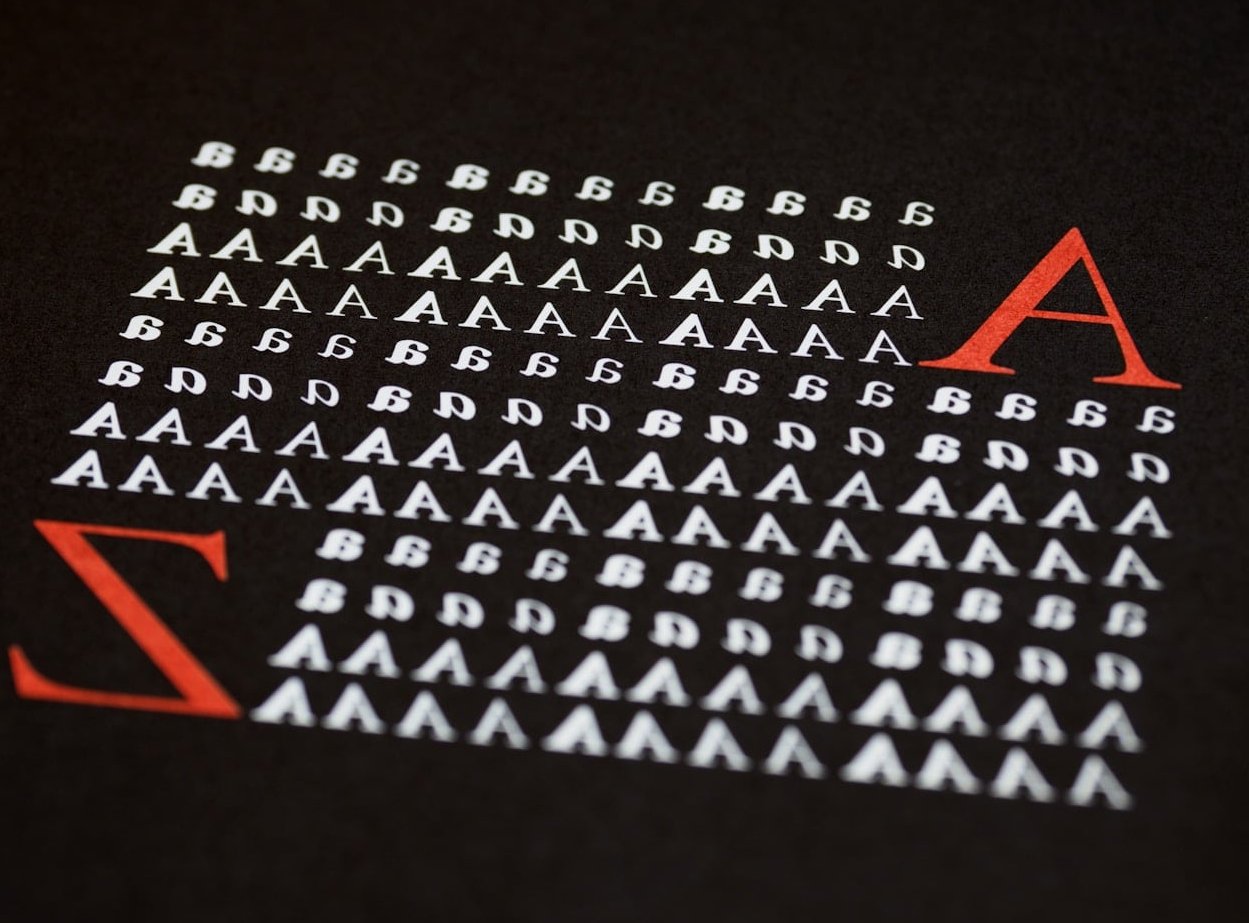
Drop caps are one of the oldest typographic traditions in editorial design, dating back to illuminated manuscripts. Today, they remain a powerful way to invite readers into a story, signal the beginning of a section, or simply add visual rhythm to long-form text. If you work with Adobe InDesign, you already have every tool needed to produce stunning drop caps, from the simplest single-letter version to fully illustrated, custom-designed initial capitals.
In this tutorial, we’ll walk through every method of creating drop caps in InDesign, including the common issues most designers run into (misaligned baselines, awkward quotation marks, weird spacing) and how to solve them like a pro.
What Is a Drop Cap and Why Use One?
A drop cap is an enlarged initial letter at the start of a paragraph that drops down across multiple lines of body text. It serves three main purposes in editorial design:
- Guide the reader’s eye to the start of an article or chapter
- Establish hierarchy and visual interest on a page
- Reinforce branding through a custom typographic style
You’ll see drop caps in magazines, novels, annual reports, brochures, and increasingly in digital editorial layouts exported from InDesign.
Method 1: Create a Drop Cap Using the Paragraph Panel
This is the fastest way to add a drop cap in InDesign. It works for a single paragraph and is ideal when you’re prototyping a layout.
Step-by-step
- Open your document and select the Type Tool (T).
- Click inside the paragraph where you want the drop cap.
- Open the Paragraph panel via Window > Type & Tables > Paragraph (or press Cmd/Ctrl + Alt + T).
- Find the two drop cap fields at the bottom of the panel:
- Drop Cap Number of Lines – how many lines tall the cap should be
- Drop Cap One or More Characters – how many letters to enlarge
- Enter 3 in the lines field and 1 in the characters field for a classic 3-line drop cap.
That’s it. InDesign will automatically resize the first letter and wrap the body text around it.
Method 2: Drop Caps and Nested Styles (The Professional Way)
For repeatable, brand-consistent results across long documents, you should always use Paragraph Styles combined with Character Styles. This is the method most editorial designers rely on.
1. Create a Character Style for the Drop Cap
- Open Window > Styles > Character Styles.
- Click the New Character Style icon at the bottom of the panel.
- Name it Drop Cap.
- Set your preferred font, color, tracking, and any baseline shift.
2. Apply the Character Style Through a Paragraph Style
- Open Window > Styles > Paragraph Styles.
- Edit your body text paragraph style (or create a new one for the opening paragraph).
- Go to the Drop Caps and Nested Styles panel on the left.
- Set the number of Lines and Characters.
- Under Character Style, choose your new Drop Cap style.
- Click OK.
Now every paragraph using that style will get a perfectly formatted drop cap automatically.
Useful Options to Enable
- Align Left Edge – removes the small built-in side bearing so the cap aligns flush with the text margin.
- Scale for Descenders – essential when your drop cap is a letter with a descender like Q, J, or Y.
Method 3: Custom Designed Drop Caps (Anchored Objects)
When a typed letter isn’t enough and you want an illustrated, hand-drawn, or vector-decorated initial, the trick is to convert the drop cap into a graphic frame and anchor it inline.
Step-by-step
- Type your drop cap letter as normal at the start of the paragraph.
- With the Type Tool, select only that letter.
- Go to Type > Create Outlines (Cmd/Ctrl + Shift + O) to convert it to a vector shape inline.
- Right-click the outlined letter and choose Content > Graphic.
- You can now place an image, illustrated letter, or styled artwork inside that anchored frame.
- Use the Anchored Object Options (Object > Anchored Object > Options) to control positioning relative to the text.
This is the technique used in high-end magazine design when each chapter opens with a unique illustrated cap.

Fixing Common Drop Cap Problems
Drop caps look simple but rarely behave perfectly out of the box. Here are the issues you’ll encounter and how to fix each one.
| Problem | Cause | Solution |
|---|---|---|
| Drop cap baseline doesn’t align with text | Different font metrics or descender | Enable Scale for Descenders or use baseline shift in your character style |
| Too much space between drop cap and body text | Built-in left side bearing | Tick Align Left Edge, or apply negative kerning between the cap and next character |
| Quotation mark gets enlarged instead of the letter | InDesign counts the quote as a character | Set Drop Cap Characters to 2, then use a character style only on the second character |
| Drop cap sticks out into the margin | Optical margin alignment is off | Enable Type > Story > Optical Margin Alignment |
| Drop cap not appearing | Paragraph contains a forced line break or empty space at start | Remove invisible characters using Type > Show Hidden Characters |
Handling Drop Caps with Quotation Marks and Special Characters
One of the trickiest situations is when a paragraph starts with an opening quotation mark, like “Once upon a time…”. By default, InDesign will enlarge the quotation mark, which looks unbalanced.
Two reliable solutions:
- Hanging quote technique: Set drop cap characters to 2 (the quote + first letter), then create a character style that hides or shrinks the quotation mark using a smaller point size and baseline shift.
- GREP styles: Use a GREP style in your paragraph style to automatically detect and reformat the opening quote. A pattern like
^["\u201C]applied with a smaller character style will keep the drop cap visually clean across your entire document.
Drop Cap Shortcuts and Tips for Editorial Workflows
- Open the Paragraph panel quickly: Cmd/Ctrl + Alt + T
- Convert text to outlines for custom caps: Cmd/Ctrl + Shift + O
- Apply only to first paragraph: Use the Next Style feature so the drop cap style automatically switches to the body style after one paragraph
- Test across fonts: Drop caps behave differently with each typeface, particularly with serif fonts that have prominent descenders or swashes
- Always create a paragraph style rather than applying drop caps manually, even on short jobs. It saves time the moment a client requests changes.
How to Remove a Drop Cap in InDesign
If you want to undo a drop cap, simply set both the Drop Cap Number of Lines and Drop Cap Characters values back to 0 in the Paragraph panel. If the drop cap is part of a paragraph style, edit the style itself or apply [None] from the Character Styles panel.
Best Practices for Editorial Design
- Limit drop caps to the start of articles, chapters, or major sections, not every paragraph
- Match the drop cap typeface to your headline font for hierarchy consistency
- Keep the drop cap height between 2 and 5 lines for readability
- Add subtle color or weight differences to make the cap pop without overwhelming the page
- Always proof on the final medium (print or PDF) since rendering can vary slightly from screen preview
FAQ
How do I create a drop cap that only appears in the first paragraph?
Create a dedicated paragraph style (for example Body Opening) that includes the drop cap settings, then use the Next Style feature to switch automatically to your regular Body Text style after the first paragraph.
Why is my drop cap not working in InDesign?
The most common causes are hidden characters at the start of the paragraph, applying drop caps to a paragraph that’s actually a single line, or a paragraph style override blocking the setting. Use Type > Show Hidden Characters to inspect.
Can I use a different font for the drop cap?
Yes. Create a character style with the alternate font and apply it through the Drop Caps and Nested Styles panel inside your paragraph style.
What’s the keyboard shortcut for drop caps in InDesign?
There is no native keyboard shortcut for applying a drop cap, but you can assign one through Edit > Keyboard Shortcuts, or simply use the Paragraph panel (Cmd/Ctrl + Alt + T).
Can I create drop caps that span multiple columns?
Standard drop caps stay within their column. For a multi-column effect, you’ll need to use an anchored frame or a separately drawn text frame positioned manually over your layout.
Do drop caps work when exporting to EPUB or HTML?
InDesign exports drop caps as CSS styles when generating EPUB and HTML, but support varies by reader. For consistent results across digital outputs, test on your target devices and consider using anchored graphic drop caps that export as images.
Final Thoughts
Drop caps are a small detail with a big impact on editorial design. Whether you’re using the basic Paragraph panel approach for a quick layout or building a fully custom illustrated initial cap with anchored objects, mastering these techniques will instantly elevate the look of your InDesign documents. The key is to combine paragraph styles, character styles, and the occasional GREP rule so that your drop caps remain consistent, flexible, and easy to update across an entire publication.
Now open InDesign and start experimenting. Your readers’ eyes will thank you.